




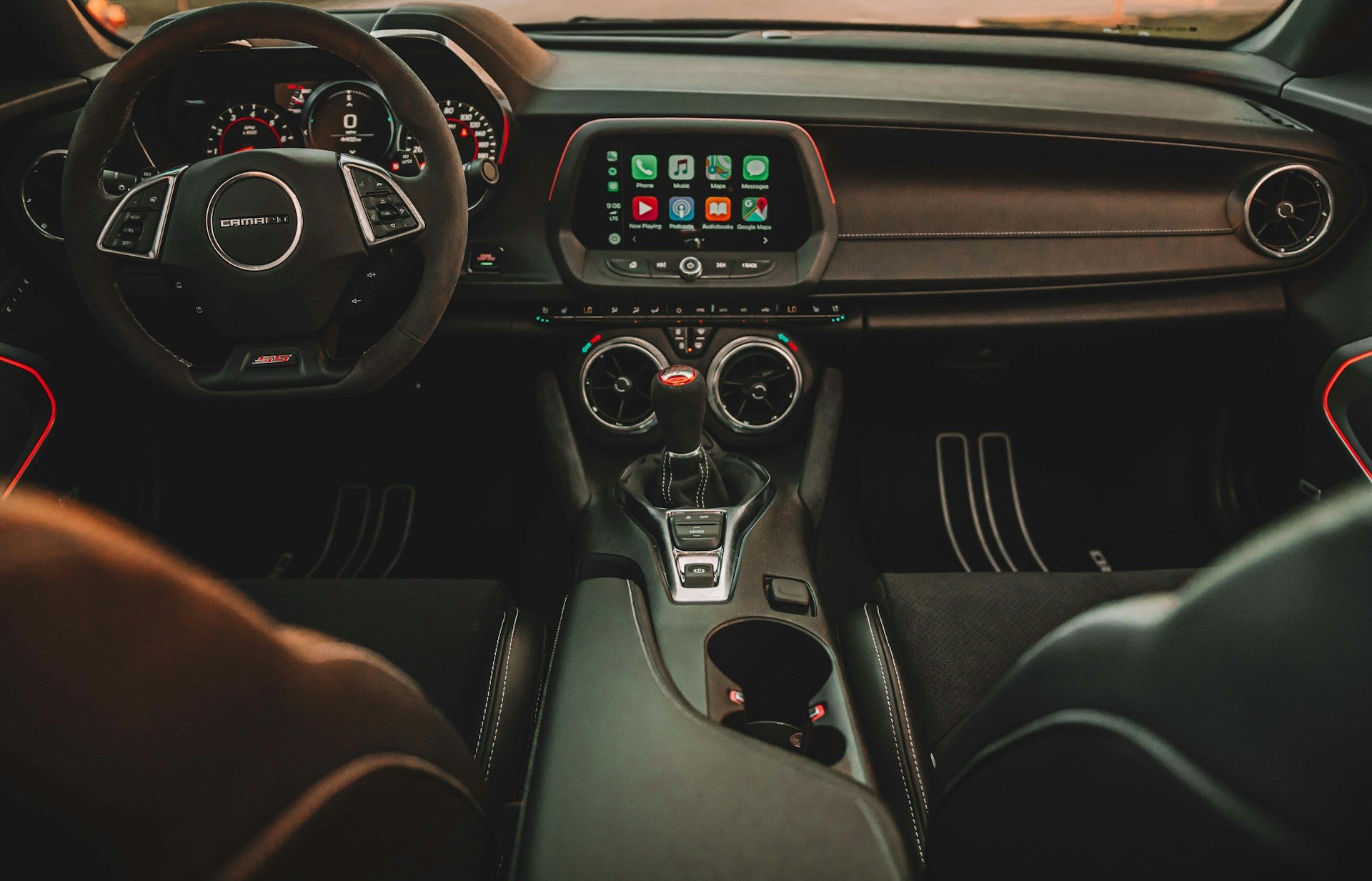
If Apple CarPlay is not working in your Chevy, the problem may come from your phone settings, connection method, cable, or infotainment system. Before scheduling service, there are several troubleshooting steps you can try to restore the connection. Apple CarPlay works with compatible iPhones and Chevrolet infotainment systems, although feature availability can vary by vehicle and model year. If the issue continues, you can schedule a service appointment with Monument Chevrolet in Pasadena, Texas.
Why Is Apple CarPlay Not Working in My Chevy?
Apple CarPlay connection problems can have several causes. Your iPhone may not be connected correctly, Bluetooth or Wi-Fi may be disabled, CarPlay may be turned off in your phone or vehicle settings, or your phone or infotainment software may need an update.
For 2024 model-year and newer Chevrolet vehicles, Chevrolet states that Apple CarPlay requires an iPhone running iOS 14 or later for both wired and wireless connections. Apple CarPlay compatibility and connection options may vary by vehicle, so check your Chevrolet owner's manual if you are unsure what your vehicle supports.
How To Troubleshoot Chevy Apple CarPlay
1. Make Sure Apple CarPlay Is Enabled
Start by confirming that Apple CarPlay is enabled on both your iPhone and your Chevrolet infotainment system. On your iPhone, open Settings, select General, and then choose CarPlay. Select your vehicle if it appears in the list.
In your Chevy, check the infotainment settings for Apple CarPlay or smartphone connection options. Menu names can vary by model and infotainment system, so refer to your owner's manual if necessary.
2. Check Bluetooth and Wi-Fi for Wireless CarPlay
If your Chevrolet supports wireless Apple CarPlay, make sure Bluetooth and Wi-Fi are both enabled on your iPhone. If the connection is not working, turn Bluetooth and Wi-Fi off and back on before attempting to reconnect.
Wireless Apple CarPlay is available only on compatible vehicles and phones, so a wired connection may be required on some Chevrolet models.
3. Check the USB Cable and Data Port for Wired CarPlay
If you use wired Apple CarPlay, inspect the cable for visible damage and make sure it is securely connected to a USB data port. Some USB ports in a vehicle may provide charging only and may not support smartphone projection.
If CarPlay still does not connect, try another compatible cable or data-capable USB port if your vehicle has one.
4. Restart Your iPhone and Vehicle
Restarting both your phone and vehicle can resolve temporary connection problems. Turn off your iPhone, shut off your vehicle, and then restart both before attempting the connection again.
Because restart procedures vary by iPhone model and Chevrolet infotainment system, follow the instructions for your specific devices rather than relying on one universal button sequence.
5. Forget the Vehicle and Reconnect CarPlay
If the existing connection appears corrupted or no longer works properly, remove the vehicle from your iPhone and pair it again. On your iPhone, go to Settings, General, and CarPlay. Select your Chevrolet and choose Forget This Car.
Then reconnect your phone to the infotainment system and follow the prompts on both screens to establish a new CarPlay connection.
6. Update Your iPhone and Chevrolet Software
Software updates can resolve connectivity issues and improve compatibility. Check your iPhone for available updates under Settings, General, and Software Update.
If your Chevrolet supports vehicle software updates, check the infotainment system under Settings, System, and Vehicle Software for available updates or software information. Menu options can vary by vehicle.
What If Apple CarPlay Still Will Not Connect?
If CarPlay still does not work after you have checked the settings, connection method, cable, and software, the issue may require further diagnosis. Problems involving the infotainment system, USB ports, connectivity hardware, or vehicle software can be difficult to isolate without inspecting the vehicle.
The team at Monument Chevrolet can help evaluate technology and connectivity concerns with your Chevrolet. Visit our Chevy service center in Pasadena, TX or schedule a service appointment online if the problem continues.
Shop Used Vehicles With Apple CarPlay
If smartphone connectivity is an important feature in your next vehicle, browse our used vehicles with Apple CarPlay. Feature availability varies by year, model, trim, and equipment, so confirm the vehicle's included technology before purchase.
Get Help With Chevy Apple CarPlay in Pasadena, TX
Many Apple CarPlay connection problems can be resolved by checking your phone and vehicle settings, reconnecting your device, inspecting the cable or USB port, and installing available software updates. If those steps do not solve the issue, Monument Chevrolet is available to help diagnose the problem and determine the appropriate next step.
Photo by Yuvraj Singh on Unsplash