






Apple CarPlay has become an essential feature for seamless integration between your iPhone and your vehicle’s infotainment system. When CarPlay stops working in your Chevy, it can disrupt your ability to safely access navigation, music, messages, and other important features while driving. Before attempting troubleshooting steps, you should verify that your device meets the basic requirements. CarPlay is compatible with iPhone 5 or later models, while 2024 Chevrolet models require iOS 14 or later for both wired and wireless connections. If you’re still struggling after reading our guide, please feel free to schedule a service appointment at our Chevy service center in the Houston area.
Diagnosing Apple CarPlay Issues in Your Chevy
Ensuring That CarPlay Is Enabled in Your Chevy’s Settings
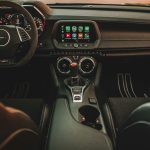
The first step in resolving CarPlay connection problems is checking if the feature is properly enabled in both your vehicle and phone settings. On your iPhone, go to Settings, find General, and then select CarPlay to verify the connection settings. Navigate to the settings menu in your Chevy’s infotainment system and look for the smartphone connection or CarPlay settings to confirm that it’s activated.
Verifying That Bluetooth and Wi-Fi Connectivity Are Active and Functioning
For wireless CarPlay to work correctly, both Bluetooth and Wi-Fi need to be enabled on your iPhone. Check your iPhone’s settings by going to Settings, find Bluetooth and Settings, and then select Wi-Fi to make sure both are turned on. If you’re having connection issues, try toggling both settings off and back on to refresh the connections. For wireless connections specifically, open your iPhone’s Settings app, tap Bluetooth, and ensure it’s turned on. Then, navigate to Settings and select Wi-Fi to verify that it’s enabled.
Confirming That CarPlay Is Allowed While the Phone Is Locked
A common but often overlooked setting that can prevent CarPlay from working is the Allow CarPlay While Locked option. To check this, go to Settings, tap General, and then CarPlay on your iPhone. Select your car from the available connections list and make sure the toggle for Allow CarPlay While Locked is enabled.
Inspecting the USB Cable for Damage or Incompatibility
The quality and condition of your USB cable can significantly impact the performance of your wired CarPlay connections. Many users have reported cable failures within three to four weeks of use, leading to intermittent connections or complete failure. Inspect your cable for visible damage and try using an Apple-certified cable if you’re experiencing connectivity issues. You can also test different USB cables and ports in your Chevy since some may work better than others.
Troubleshooting Steps for Chevy Apple CarPlay
There are various ways to troubleshoot and fix the identified issues:
Restarting Your iPhone and Chevy’s Infotainment System
A simple restart of both devices can often resolve connection issues. For iPhones without a Home Button, press and hold the volume up and power buttons until the Power Off slider appears. For models with a Home Button, hold the Side Button until you see the same slider. Navigate to the settings panel in your Chevy’s infotainment system and look for the restart or reboot option.
Re-Establishing a CarPlay Connection From Scratch
If you’re still experiencing issues, try removing and re-establishing the CarPlay connection. On your iPhone, go to Settings, tap General, and then select CarPlay, find your car’s name under My Cars, and select Forget This Car. This completely removes the existing connection, allowing you to set up CarPlay as if it were the first time. Reconnect your iPhone to your Chevy’s infotainment system to establish a fresh connection.
Turning Off USB Restricted Mode on Your iPhone
USB Restricted Mode is a security feature that can interfere with CarPlay functionality. To disable this feature, go to Settings, find Face ID & Passcode — or Touch ID & Passcode on older models — and enable the USB Accessories option. This allows CarPlay to maintain a connection even when your phone has been locked for more than an hour.
Updating Your iPhone’s iOS to the Latest Version
Software updates often include fixes for CarPlay-related issues. Check for iOS updates by going to Settings, General, and Software Update on your iPhone. This is particularly important for 2024 Chevrolet models, which require iOS 14 or later versions for CarPlay functionality. Ensure that your CarPlay stereo is using the latest firmware from the car manufacturer by checking your owner’s manual for specific update instructions.
Resetting Your Car’s Network Settings
You may need to reset the network settings of your Chevy’s infotainment system to resolve persistent CarPlay issues. Check your owner’s manual for specific instructions on accessing and resetting network settings since the process can vary between different Chevrolet models and infotainment system versions.
Advanced Solutions and Alternatives
If CarPlay isn’t working after you’ve tried all the troubleshooting steps, it’s time to seek professional help. Our certified service experts at Monument Chevrolet in Pasadena, Texas, specialize in diagnosing and fixing technology-related issues in Chevrolet vehicles. Our service center offers comprehensive vehicle assessments and multipoint vehicle inspections to identify and resolve any underlying issues affecting your CarPlay functionality. You can reach our service department at 832-369-8298 to schedule an appointment or contact us online.
Ensure a Smooth CarPlay Experience in Your Chevy
Most CarPlay issues can be resolved through these troubleshooting steps. Regularly updating both your iPhone’s iOS and your Chevy’s infotainment system will help prevent many common problems. For technical issues beyond these solutions, our certified Chevy service center at Monument Chevrolet in Pasadena, Texas, is ready to help restore your Chevy’s CarPlay functionality or assist with any other concerns about your vehicle. Contact us today to schedule an appointment.
Photo by Yuvraj Singh on Unsplash
Connect with us


